A Mermaid Planning Tool for AI

The practice of writing code has been changing fast. Really fast. I–and a large portion of the industry–write code in a completely different way from a year ago. And by that I mean that I largely manage a sophisticated coding machine that does the work. Writing code is now a process very similar to some of my previous experience as VP of Architecture at Community: I help co-design an architecture that will support the desired implementation, and then I help supervise the plan to do so. I review PRs, and suggest changes. I ensure docs and patterns are up to date. It’s a familiar role.
As I’ve become more adept at coding with AI, I’ve found that what worked well for teams of developers works well for AI. And, one of those things is that starting with a diagram-focused discussion is a lot easier. In person this often starts at a whiteboard. In remote teams it’s often some cobbled together combination of other tools. Some years ago now, thanks to Community.com being 100% remote, my brother Jeffrey Matthias introduced me to Mermaid and its implementation of sequence diagrams. I was (and remain) impressed by the simplicity of that diagram and how easily the most important interactions are made clear.
Leveling Up
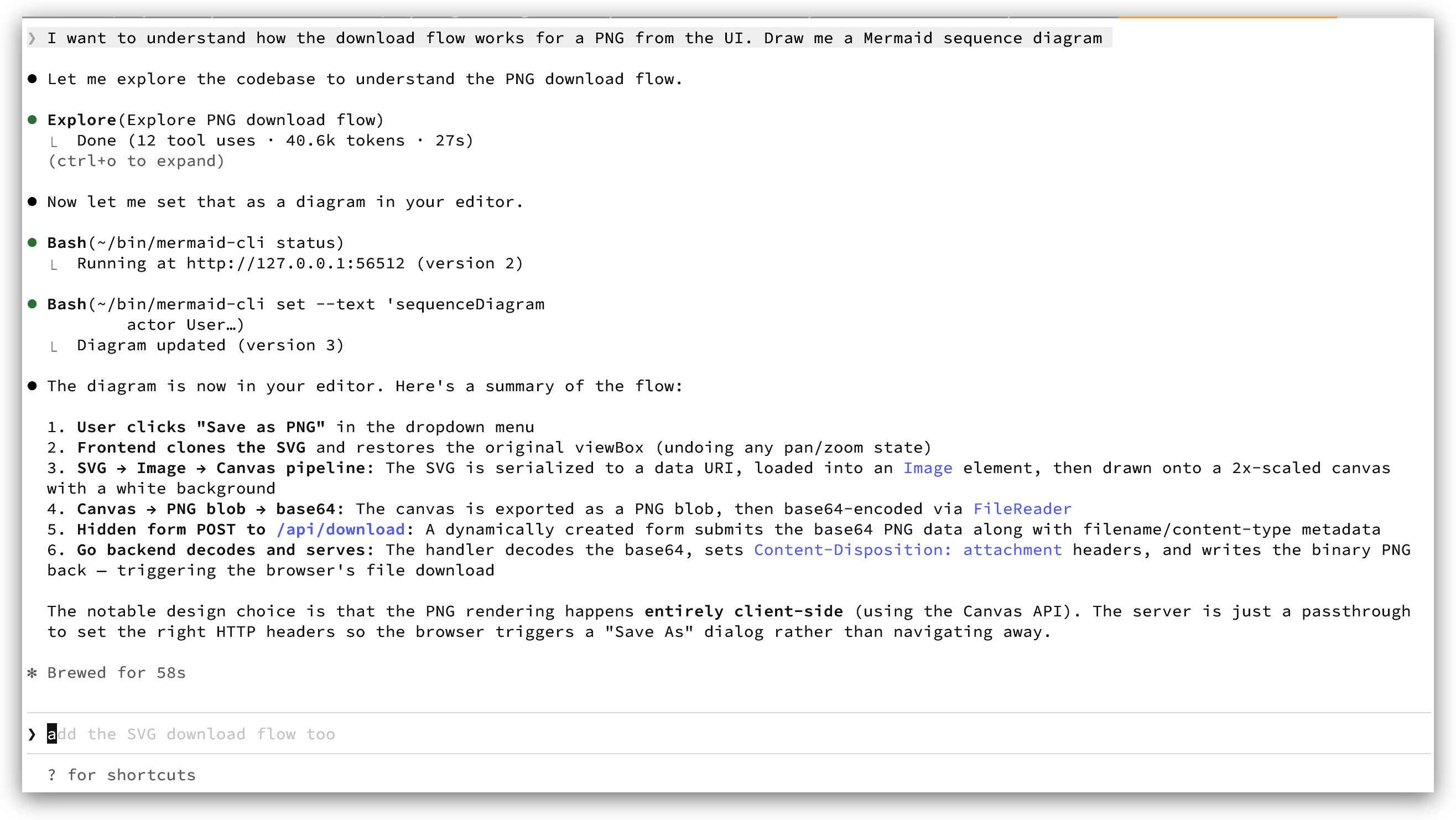
Some months back, Tom Patterer and I started asking Claude Code to generate Mermaid diagrams for when exploring existing code, and when creating implementation plans. And, it turns out, as a fantastic tool in debugging.
This evolved into flipping the order around: on most projects we just start
with the diagram. That diagram can codify an awful lot of thinking: it’s a
really dense carrier of meaning. Once you have that, and if you have good rules
in your AGENTS.md/CLAUDE.md file, you will get a very good plan, and likley a
clean implementation. We learned to always include the diagram in the plan, so
that it is not lost in the context of the planning session. When I get a plan
from the agent, I usually clear the context and have it compare the plan to the
diagram a second time to catch any errors or oversights. I rarely catch major
issues in plans or implementation now.
Pain Point
But now you have another problem: collaborating on a diagram is somewhat
painful. Certain IDEs enable collaboration on a file with auto-reloading, but
that requires that you are editing in an IDE and it has the necessary plugins.
The few of you reading this who know me may also know that I am a 35 year vi
and vim user and not a fan of most IDEs. I co-wrote an O’Reilly book (with
Sean Kane) in vim. I don’t want to use an IDE,
neovim + Claude Code is enough. Furthermore in most of the IDEs I’ve seen,
and in the mermaid.live tool, looking at an actual
diagram of any size is not great. If you have this tooling and prefer it,
great.
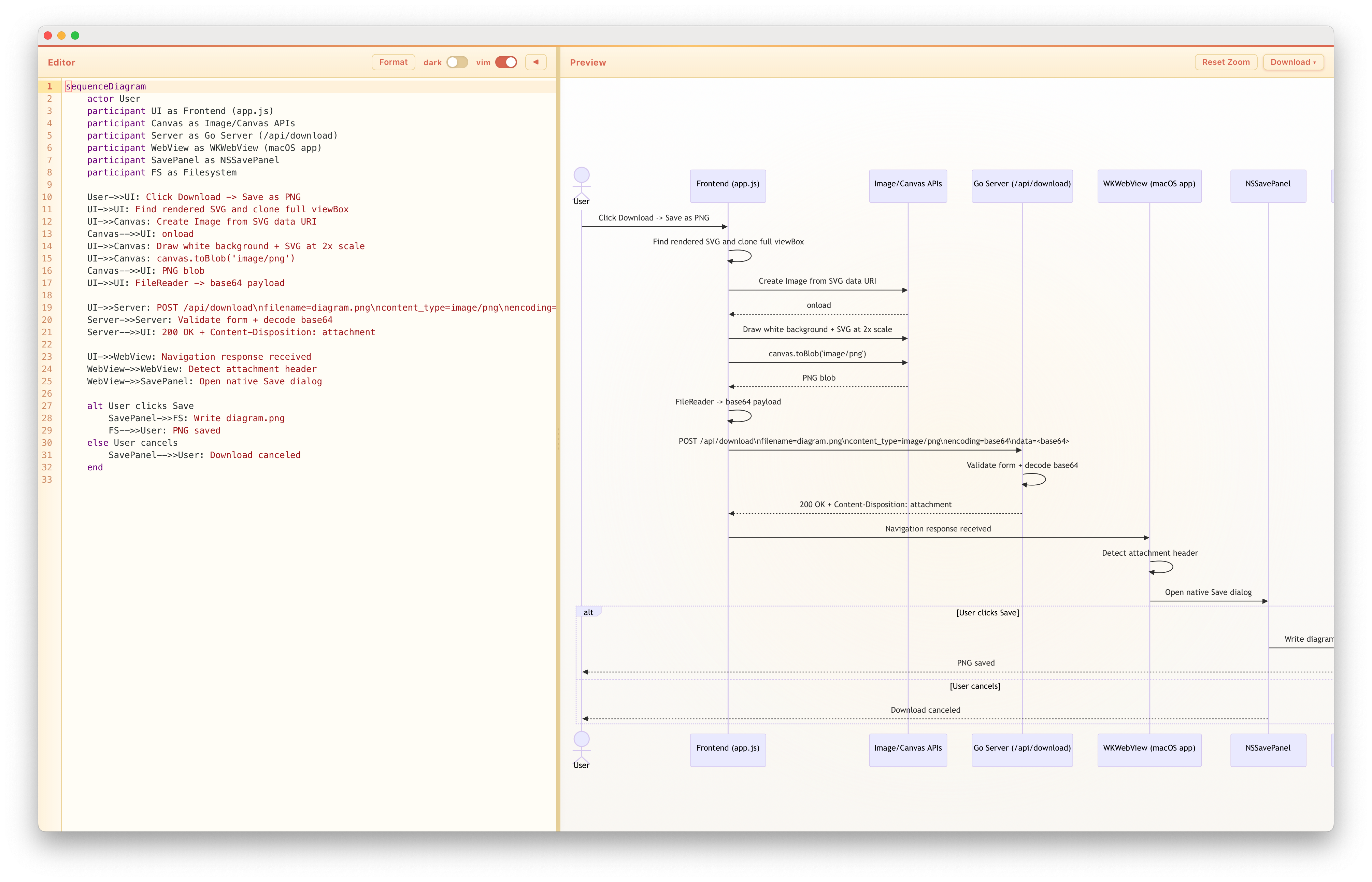
But, to suit my preferences, I decided to write a tool that would allow us to collaborate on a diagram in a way that is more natural to AI. And, which is more natural to programmers. It does include an editor, so that I can directly edit the diagram, but for the most part it’s the ability to push and pull diagrams from the agent that is the biggest win. It has both an MCP server and a CLI tool to interact with it, so take your pick. Both allow the agent to directly push updates, the CLI users fewer tokens. The tool supports going entirely full screen with the diagram, too.
Most of the rest of the Mozi team are now using it, and I am pretty sold on this workflow at the moment. It’s also fun how it harkens back to the way we all talked about designing software in the aughts, back when we thought we might largely generate code from diagrams, as Todd Sundsted pointed out to me awhile back. The code generator is just a lot more sophisticated these days.
The App
It’s a pretty simple app, but I tried to polish it up enough to make it nice to
use. Other co-workers have now contributed to it as well. I’m a light-mode guy
but co-workers are not all, so there is a dark mode. vim bindings are
supported but not required.
On Linux and Windows, it’s a server and opens the browser to the diagram. On
macOS, it’s a desktop app that opens the diagram. It can also open .mmd files
in the event you want to review previous work.
If you are serious about improving your AI workflow, I encourage you to try it out. You can get it here.